All information on this site is provided by Mubite for educational purposes only, specifically related to financial market trading. It is not intended as an investment recommendation, business advice, investment opportunity analysis, or any form of general guidance on trading investment instruments. Trading in financial markets involves significant risk, and you should not invest more than you can afford to lose. Mubite does not offer any investment services as defined under the Capital Market Undertakings Act No. 256/2004 Coll. The content on this site is not directed toward residents in any country or jurisdiction where such information or use would violate local laws or regulations. Mubite is not a brokerage and does not accept deposits.
Mubite s.r.o., Školská 660/3, Nové Město, ICO: 23221551 Praha 1, 110 00, Czech Republic | Copyright Ⓒ 2026 Mubite. All Rights Reserved.
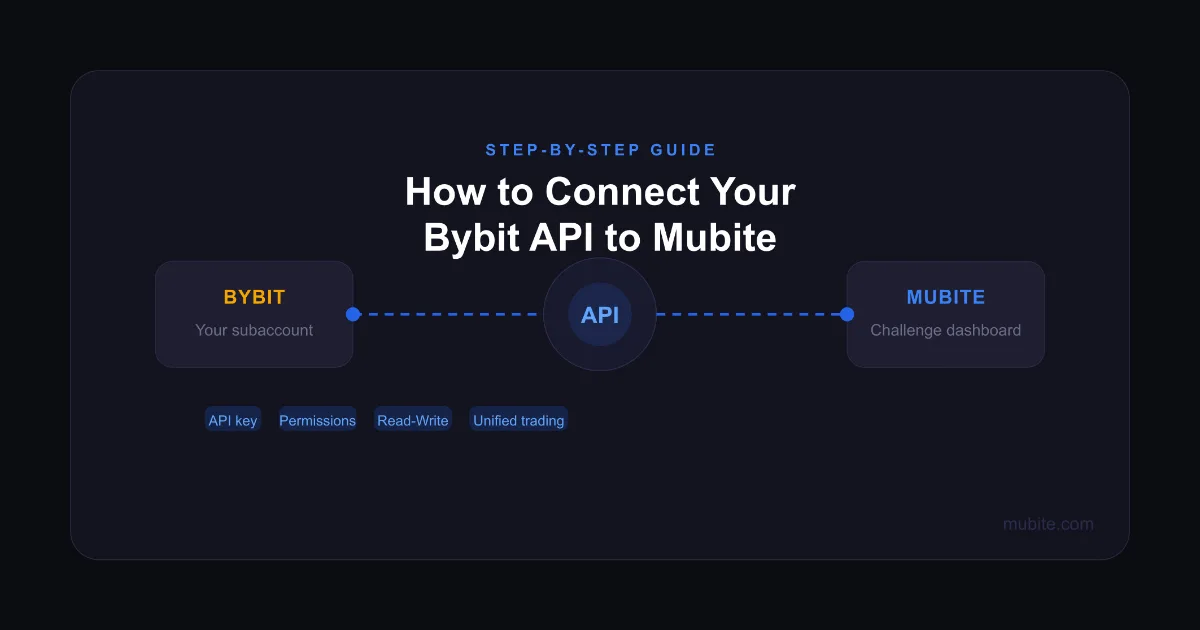
Setting up your Bybit API connection is the final step before you can start your Mubite crypto prop trading challenge. The process takes around five minutes, but getting the permissions wrong is the number one reason traders contact our support team after purchase. This guide walks you through every step on both Bybit and Mubite so you get it right the first time.
Written by the Mubite team – we've guided thousands of traders through this setup process and built this guide around the real errors we see most often.
Create a dedicated Bybit subaccount for your challenge (not your main account)
In Bybit → API Management, generate a System-generated API key
Set permissions to Read-Write on Unified Trading and Assets — no IP restriction
Copy your API key and secret (you won't see the secret again)
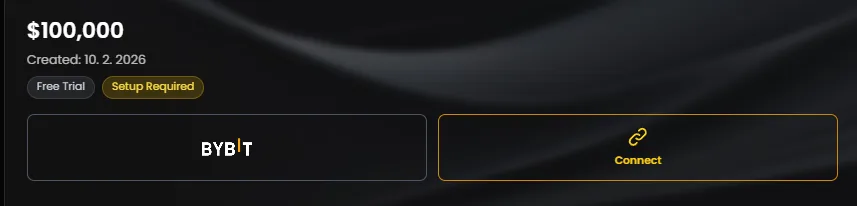
In your Mubite dashboard, select your challenge → click Connect
Confirm the three-step checklist, paste your credentials, hit Test Connection
An API (Application Programming Interface) is a secure bridge between two platforms. Instead of sharing your Bybit login credentials with Mubite, you generate a unique API key that grants only the specific permissions Mubite needs to monitor and manage your challenge account.
This means your Bybit password and withdrawal access stay entirely private. Mubite can only perform the actions you explicitly permit, and you can delete or regenerate the key at any time.
As the only crypto prop firm with a native Bybit partnership, Mubite's integration is purpose-built, not a workaround bolted onto a third-party system. Your challenge runs on a real Bybit subaccount with live market execution, the same infrastructure professional traders use every day.
Before creating your API key, make sure both of the following conditions are met. Based on our support experience, skipping either one accounts for the majority of failed connection attempts.
Mubite requires each challenge to be connected to its own separate Bybit subaccount – not your personal main account. This keeps your own capital completely isolated and ensures Mubite's risk monitoring only tracks the correct positions.
To create a subaccount: log into Bybit → click your profile icon in the top right → select Sub Accounts → create a new subaccount and note the login credentials before proceeding.
Mubite's integration requires a Bybit Unified Trading Account. Accounts created on Bybit recently will already be on UTA by default. If yours isn't, navigate to Trade inside your Bybit dashboard and look for the option to upgrade. The upgrade is automatic and your assets carry over without interruption.
If you've just registered a new Bybit subaccount, Bybit enforces a 48-hour security window before API key creation is enabled. This is a Bybit-side restriction, not a Mubite issue, there is nothing wrong with your account. Wait out the window, then follow the steps below.
Not sure which challenge type you've purchased? Check how Mubite's challenges work or review the full challenge rules page before continuing, it's worth understanding your drawdown and profit target before your first trade goes live.
With your subaccount ready, follow these steps inside Bybit to generate your API credentials.
Step 1 – Log into your dedicated Bybit subaccount
Make sure you are signed in to the subaccount you created specifically for this challenge, not your main Bybit account. The API key must belong to the subaccount you intend to trade on.
Step 2 – Open API Management
Click your profile icon in the top right corner of Bybit. Select API from the dropdown. This opens the API Management page where all your keys are managed.
Step 3 – Create a new API key
Click Create New Key. When prompted for the key type, select System-generated API Key (not user-generated). Give it a recognisable label such as "Mubite Challenge" so you can identify it at a glance.
Step 4 – Set the correct permissions
This is the most critical step, and the one our support team most commonly needs to correct. Mubite requires Read-Write access, not Read-Only. Here is exactly what to enable:
API Transaction: Read and Write
Unified Trading: Read and Write
Assets: Read and Write
IP Access: No IP Restriction
Do not enable withdrawal or transfer permissions. Only the three categories above are needed.
Step 5 – Complete 2FA verification
Bybit will prompt you to verify via Google Authenticator or SMS. Complete the 2FA step to generate the key.
Step 6 – Copy your API Key and Secret immediately
Bybit displays your API Key (public key) and API Secret exactly once. Copy both right now and store them somewhere safe before closing the screen, the secret is never shown again. If you lose it, you will need to delete the key and generate a new one from scratch.
| Permission | Setting |
|---|---|
| API Transaction | Read and Write |
| Unified Trading | Read and Write |
| Assets | Read and Write |
| IP Restriction | No IP Restriction |
| Withdrawals | Do not enable |
| Transfer | Do not enable |
If Read-Only is selected on any row, the connection test inside the Mubite dashboard will fail. This single mistake accounts for a large portion of the support tickets our team receives, double-check this before moving on.
With your API key and secret ready, switch over to your Mubite account to complete the connection.
Step 1 – Log in and open your Dashboard
After logging into Mubite, open the Dashboard from the left corner of the screen. This is your central hub for managing all active challenges and account activity.
Step 2 – Select your challenge
If you're starting fresh, you'll choose between the Free Trial, Instant Funding, One-Step Challenge, or Two-Step Challenge. Not sure which is right for you? Compare the options on the challenge pricing page, account sizes range from $5,000 up to $200,000. If you've already purchased, your active challenge will be visible in the dashboard immediately.
Step 3 – Click Connect on your challenge
Find your active challenge and click Connect to open the API connection panel.

Step 4 – Complete the pre-connection checklist
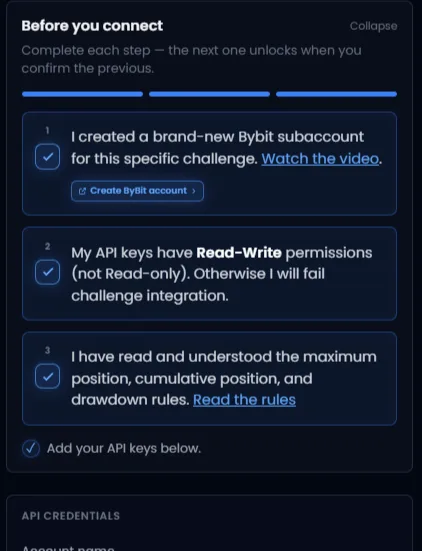
A pop-up will appear asking you to confirm three statements before proceeding. Each checkbox unlocks the next, all three must be checked:
✅ I created a brand-new Bybit subaccount for this specific challenge
✅ My API keys have Read-Write permissions (not Read-Only). Otherwise I will fail challenge integration
✅ I have read and understood the maximum position, cumulative position, and drawdown rules
A full video walkthrough is also available directly inside this pop-up if you prefer to follow along visually.

Step 5 – Paste your API credentials
You'll see three fields under API Credentials:
Account name – pre-filled with your challenge name (e.g. "Free Trial $100K Account")
Bybit API key – paste your public key here
Bybit API secret – paste your secret here
Step 6 – Click Test Connection
Hit Test Connection. If everything is set up correctly Mubite will verify the connection and your challenge becomes active. If the test fails, see the troubleshooting section below.
Our support team has documented the most frequent connection failures across thousands of trader setups. These four cover the vast majority of cases.
"Connection failed" or "Invalid API key" – you likely copied the key or secret with a trailing space, or the text was cut off. API keys are case-sensitive and must be exact. Return to Bybit API Management, delete the key, and generate a fresh one, then copy directly from the Bybit screen without reformatting.
"Insufficient permissions" – the API key was created with Read-Only instead of Read-Write on Unified Trading or Assets. Edit the key in Bybit API Management and update all three permission categories to Read and Write.
"API key not found" – you are likely using a key generated from your main Bybit account rather than your dedicated subaccount. Confirm you are logged into the correct subaccount in Bybit, then generate a new key from there.
The API Management option isn't visible in Bybit – your subaccount was created less than 48 hours ago. Bybit's security policy restricts API creation during this window. Wait until the 48-hour period has passed and try again.
Challenge not visible in your Mubite dashboard – confirm your purchase via your confirmation email. If the challenge still isn't appearing, contact the Mubite support team via live chat inside the dashboard, our team typically responds within minutes.
Once your API is live, your Mubite challenge is active and your trading session begins. A few things worth knowing from day one:
Your progress is tracked in real time inside the Mubite dashboard, including your current drawdown, daily P&L, and distance from your profit target. We recommend bookmarking the trading dashboard and academy page, it includes educational resources specifically designed to help traders pass their challenge phase.
Payouts are on-demand once you pass. After completing your challenge phases and becoming a funded trader, you can request your profit split at any time, there's no fixed payout schedule. You keep between 80% and 90% of your profits depending on your challenge type. Full payout mechanics and scaling rules are detailed on the account scaling page.
Top performers may be eligible for the Mubite Elite Program, a dedicated pathway for funded traders who consistently hit targets and want access to larger capital allocations.
If you have questions not covered here, the Mubite FAQ covers the most common queries across all challenge types, or you can browse verified trader reviews to see how other traders have navigated the process.
Unlike prop firms that operate on simulated environments, Mubite challenges run on real Bybit subaccounts with live market execution. This matters because your fills, spreads, and order types are identical to what you'd experience trading your own capital, there is no artificial slippage or simulated order book.
The Mubite x Bybit partnership was built specifically to support this model. Bybit's Unified Trading Account infrastructure gives Mubite traders access to perpetual contracts, up to 1:100 leverage, and a deep liquidity pool, all within a single connected account. It's the reason traders rated Mubite 4.5 stars on Google and 4.6 on The Trusted Prop across 126+ independent reviews.
If you haven't started your challenge yet, explore the available account sizes and challenge structures on the challenge prices page.
Need help? The Mubite support team is available via live chat inside the dashboard. A video walkthrough of the full API setup is also embedded directly in the connection pop-up inside your dashboard.
Share it with your community